Demystifying the Terminal: Why Understanding Its Hidden Rules Matters
Introduction
Working in the terminal is a daily reality for many developers and system administrators. After two decades of daily use, one might expect a complete mastery of the command line. Yet even seasoned users encounter moments of bafflement: arrow keys that produce escape sequences instead of moving the cursor, mouse selection that works in one program but not another, commands that vanish from history without explanation. This article explores the underlying reasons for these inconsistencies and why a deeper understanding of terminal internals can transform your experience.
The Inconsistencies of Everyday Terminal Use
Ask any experienced terminal user about their pet peeves, and you'll hear a litany of little complaints:
- Arrow keys sometimes move the cursor, other times print
^[[D - Mouse-based text selection works in some programs, but not others
- Command history saves some runs, but forgets others
- Different shells behave differently with the up arrow to recall previous commands
These are not bugs—they are symptoms of a fragmented system. Over years of use, experienced users develop an intuition for what works and what doesn't, but intuition is not the same as understanding. The real surprise is that the rules governing terminal behavior are nowhere definitively documented.
The Root Cause: A System of Many Parts
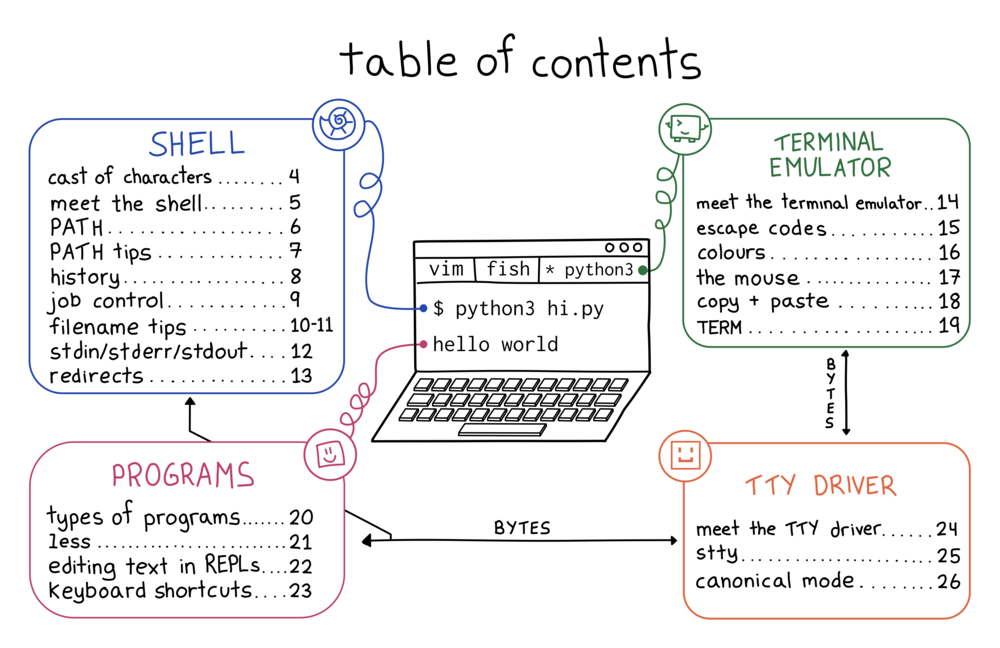
The terminal is not a single piece of software. It's an ecosystem comprising at least four distinct components:
- Terminal emulator (e.g., iTerm2, GNOME Terminal)
- Shell (e.g., Bash, Zsh)
- Programs (applications like
grep,vim, custom scripts) - TTY driver (part of the operating system's kernel)
Each piece is written by different people, at different times, with different design philosophies. The terminal emulator decides how to display characters. The shell interprets commands. Programs handle input and output in their own way. The TTY driver manages low-level communication. These layers interact in ways that sometimes conflict, leading to the inconsistencies users experience. For example, arrow key behavior depends on whether the program reads raw input or uses line buffering, and whether the terminal emulator translates escape sequences correctly.
Building Intuition vs. True Understanding
After a decade or two of daily use, most users can predict outcomes without knowing why. They learn to avoid certain combinations of programs or to tweak configuration files until things work. But this trial-and-error approach leaves a persistent unease: when something breaks, investigating feels like opening a can of worms. The author of the popular zine The Secret Rules of the Terminal set out to change that by documenting the exact mechanisms behind common terminal behavior.
What the Zine Covers
This resource organizes the chaos into digestible explanations. It covers:
How the Four Pieces Fit Together
Understanding the roles and interactions of the terminal emulator, shell, programs, and TTY driver clarifies why certain behaviors occur. For example, the TTY driver handles line editing in canonical mode, but when a program switches to raw mode, the shell's readline library takes over. This explains why arrow keys work in the shell prompt but not in some full-screen applications.
Core Conventions for Terminal Use
Despite the fragmentation, there are established conventions: control keys for editing (e.g., Ctrl+A to go to beginning of line), the role of environment variables like TERM, and how programs signal readiness for input. Knowing these conventions helps you navigate any terminal environment, regardless of the specific software stack.
Tips and Tricks for Terminal Programs
Practical advice includes how to force programs into a specific mode, how to fix broken colors, how to quit stubborn programs, and how to troubleshoot input/output issues. These tips save time and reduce frustration.
Why Terminal Internals Matter (Even If Messy)
Terminal internals are indeed a mess—much of the behavior is inherited from decisions made in the 1980s, now impossible to change without breaking compatibility. Learning every detail is not worthwhile. However, understanding the most useful parts, especially the boundary between the terminal emulator and the shell, significantly improves your ability to diagnose problems, configure your environment, and work efficiently. The Secret Rules of the Terminal distills exactly those parts, making terminal mastery more accessible.
By demystifying the hidden rules, you move from pattern-based intuition to genuine comprehension. The next time your arrow key prints ^[[D, you'll know exactly why—and how to fix it.