How to Remove the Hidden 4GB AI Data Google Chrome Silently Stored on Your Computer
Introduction
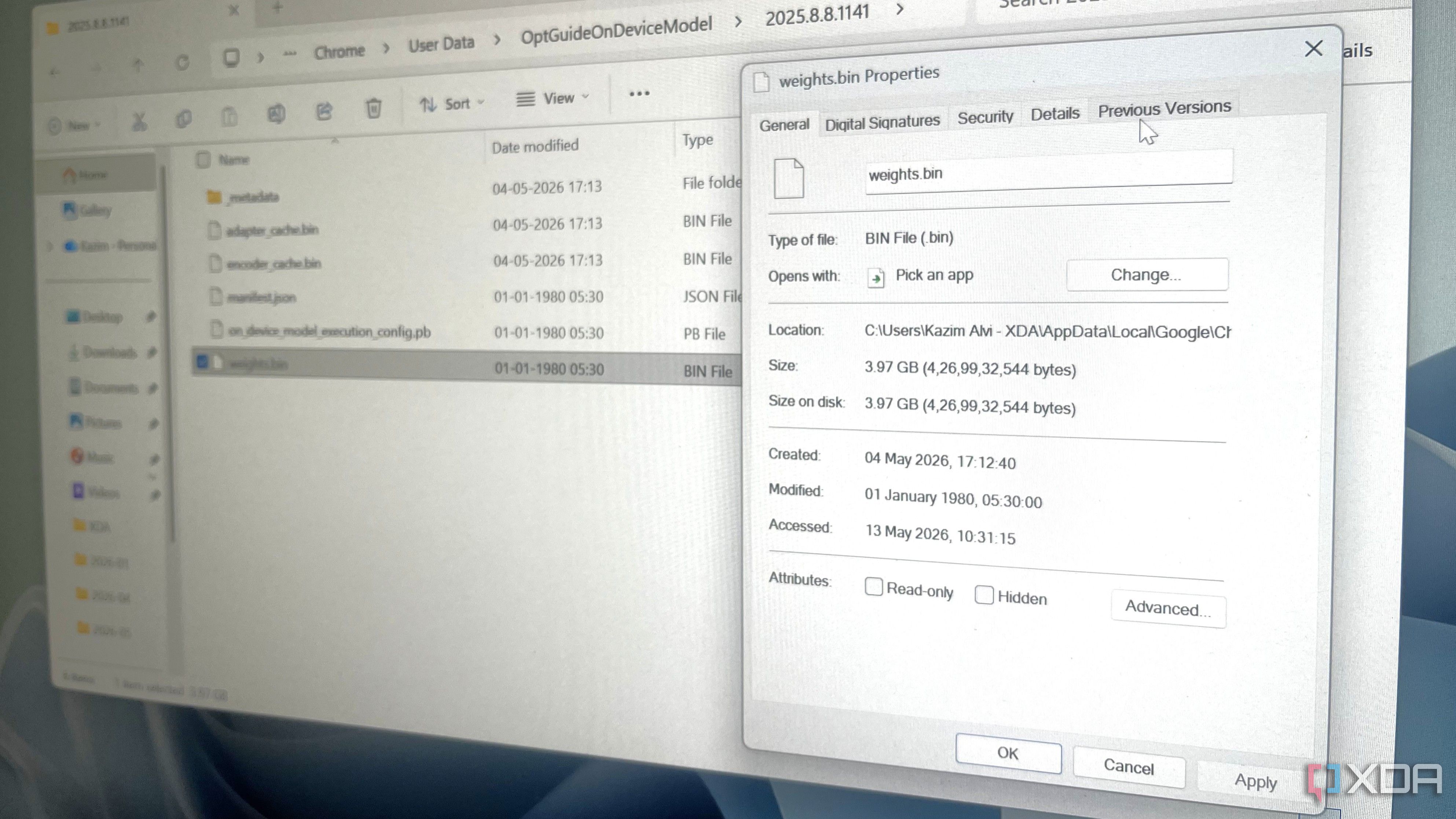
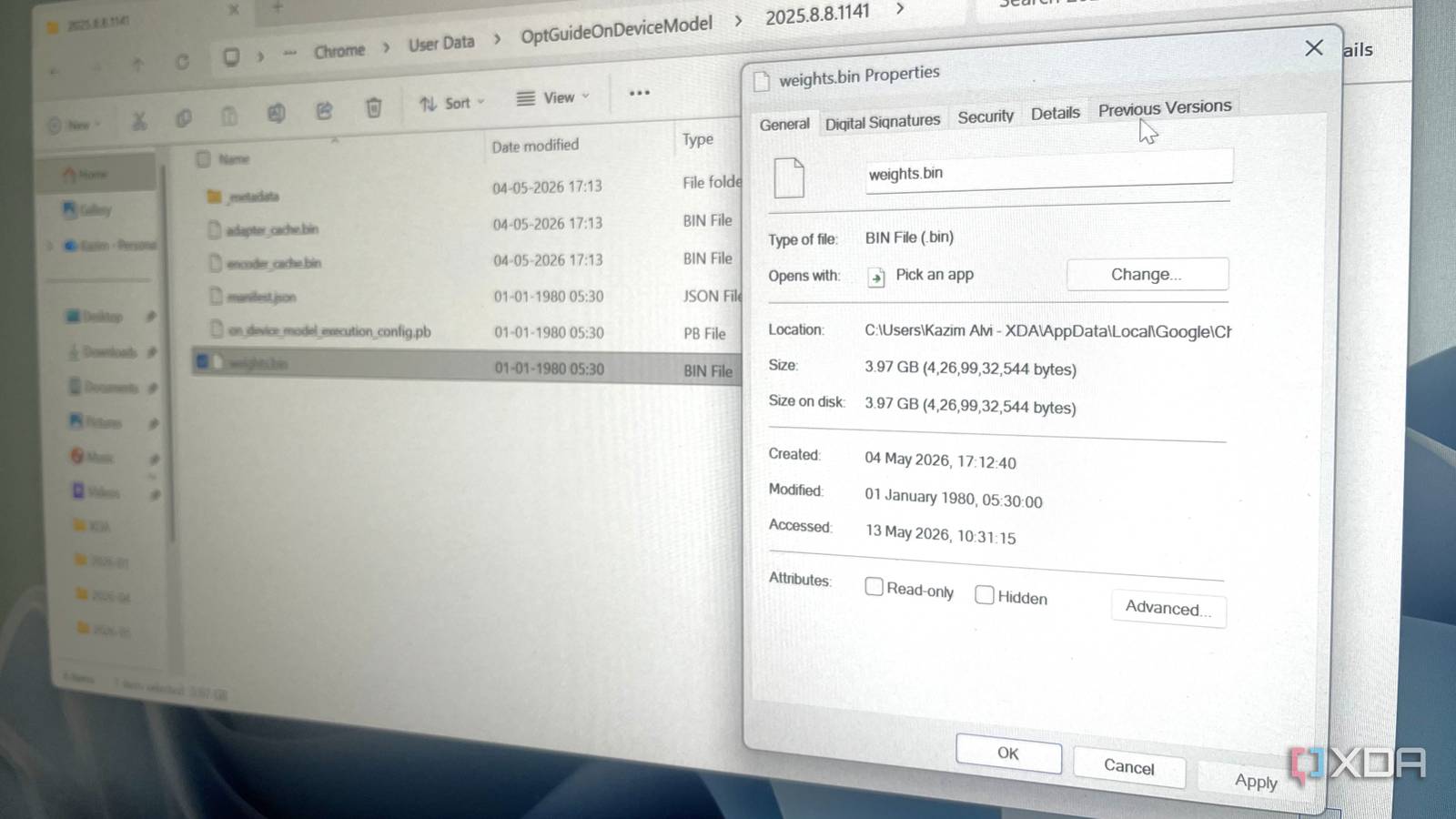
You might have noticed your computer's hard drive suddenly losing several gigabytes of free space without any obvious reason. If you use Google Chrome, there's a good chance the browser quietly downloaded around 4GB of AI-related files onto your system—without asking for your permission or even informing you. This happened on both Windows and macOS machines, and it's raising serious privacy and storage concerns. But don't worry: you can take back control. In this guide, we'll walk you through exactly how to locate and remove these hidden AI files, freeing up that precious disk space.
What You'll Need
- A computer running Windows or macOS with Google Chrome installed
- Administrator or owner-level access to your system (to delete protected files)
- Basic familiarity with file explorer (Windows) or Finder (macOS)
- About 15–20 minutes of your time
Step-by-Step Removal Guide
Step 1: Check How Much Space Chrome's AI Data Is Using
Before diving into file deletion, let's confirm the size of the hidden data. Chrome stores AI models in a special folder called "OnDeviceModelExecution" inside its user data directory.
- Open a new Chrome browser window on your computer.
- In the address bar, type
chrome://versionand press Enter. - Look for the line labeled "Profile Path" or "User Data". This shows the location of Chrome's data folder on your system.
- On Windows:
C:\Users\[YourUsername]\AppData\Local\Google\Chrome\User Data - On macOS:
~/Library/Application Support/Google/Chrome
- On Windows:
- Copy the full path (excluding the profile folder itself) and open it in your file explorer or Finder.
- Inside the User Data folder, locate the subfolder named OnDeviceModelExecution.
- Right-click (or Ctrl+click on macOS) the OnDeviceModelExecution folder and choose Properties (Windows) or Get Info (macOS). You'll likely see a size of around 4GB or slightly more.
Note: If you don't see the "OnDeviceModelExecution" folder, Chrome may not have downloaded the AI files yet, or they may be stored elsewhere. Proceed to Step 2 to search for related files.
Step 2: Manually Delete the AI Files
Once you've confirmed the folder exists, you can remove it safely. Chrome will not be harmed—these files are purely optional AI models that the browser can re‑download if needed (but only if you later enable certain experimental features).
- Close Google Chrome completely—make sure no Chrome processes are running in the background (check your system tray or Activity Monitor).
- Navigate back to the OnDeviceModelExecution folder using the path from Step 1.
- Select the entire folder and delete it:
- Windows: Press Shift + Delete to permanently remove it (bypasses the Recycle Bin).
- macOS: Right‑click the folder and choose Move to Trash, then empty the Trash.
- If your system asks for administrator permission, confirm with your password or click "Continue".
- Empty your Recycle Bin or Trash to recover the disk space immediately.
After deletion, you can verify the space is free by right‑clicking the now‑empty location and checking the properties. You should see 4GB or more suddenly available.
Step 3: Prevent Chrome from Re‑Downloading the AI Files
Chrome may try to download these AI models again if you restart the browser with certain flags enabled. To stop that, you should adjust a few settings and clear associated flags.
- Open Chrome and go to
chrome://flags. - In the search box at the top, type "AI" or "OnDevice".
- Look for flags related to on‑device AI, such as "Optimization guide on device model" or "On‑device AI model downloading".
- Set each of these flags to Disabled (not Default or Enabled).
- Click the Relaunch button that appears at the bottom of the page.
Additionally, you can disable Chrome's background app continuation: go to chrome://settings/system and turn off "Continue running background apps when Google Chrome is closed". This prevents Chrome from silently downloading data while you're not using it.
Step 4: (Optional) Clear Other Cached AI Data
Sometimes Chrome stores AI data in different locations depending on your version. For thoroughness, you can also search for other hidden AI‑related files.
- On Windows, open File Explorer and search (Ctrl+F) for "model" or "ai" inside the folder
C:\Users\[YourUsername]\AppData\Local\Google\Chrome\User Data\Default. - On macOS, open Finder, press Cmd+Shift+G, and go to
~/Library/Application Support/Google/Chrome/Default, then search for files with names like*.modelor*ai*. - Delete any files that are not part of regular browsing data (be careful not to remove your history or bookmarks).
- Empty the Trash/Recycle Bin again.
Tips for a Cleaner Chrome Experience
- Regularly audit Chrome's storage usage. Go to
chrome://settings/clearBrowserDataand click "Advanced" to see how much space cached images, files, and other data occupy. Clear them periodically. - Keep an eye on new Chrome flags. Google often introduces experimental AI features. Before enabling any flag, check what background downloads it might trigger.
- Use storage analysis tools. On Windows, use Disk Cleanup or third‑party apps like WizTree to spot large hidden folders. On macOS, use the built‑in Storage Management (Apple menu > About This Mac > Storage > Manage).
- Consider switching to a Chromium‑based browser that gives you more control over background updates if privacy is a top priority.
- Stay informed. Follow tech news to learn about similar silent downloads—being proactive saves you both time and disk space.
By following these steps, you can reclaim several gigabytes of storage and prevent Chrome from downloading unwanted AI models in the future. Your computer will feel snappier, and you'll have peace of mind knowing exactly what's on your hard drive.