From Nano to Neovim: A Step-by-Step Setup Guide for Terminal Editing
Introduction
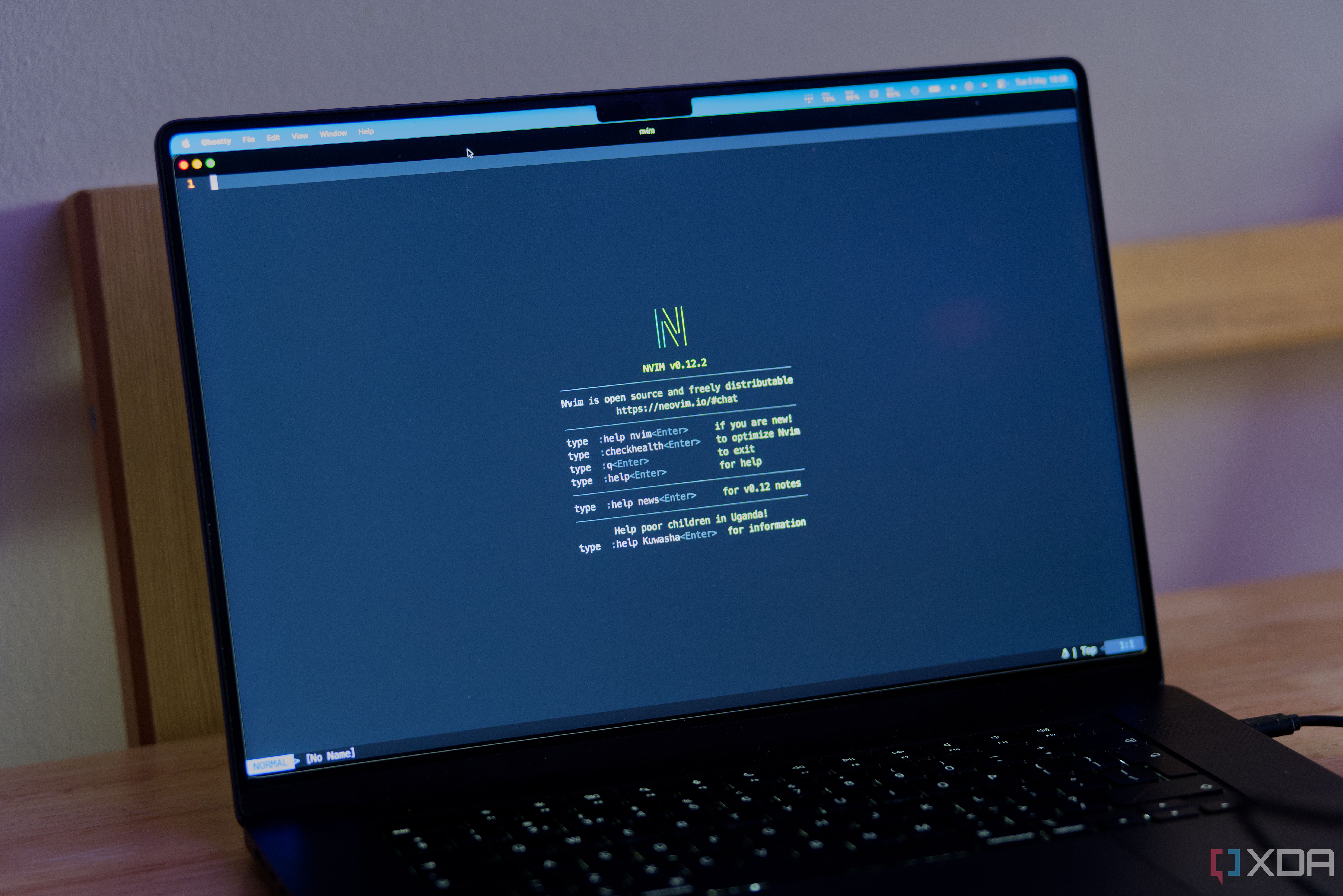
For years, my terminal editor of choice was nano. It came preinstalled, displayed keybindings at the bottom, and let me edit config files quickly. But it lacked the power needed for serious code editing. Neovim, while intimidating with its modal interface, promised blazing speed and endless customizability. This guide walks you through setting up Neovim from scratch—turning a terminal text editor into a full-fledged IDE. Whether you're a nano refugee or a curious beginner, you'll learn to install, configure, and personalize Neovim step by step.
What You Need
- A terminal (Linux, macOS, or WSL on Windows)
- Basic command-line knowledge (navigating directories, running commands)
- Patience for learning new keybindings
- Internet connection for installing plugins
- A code file or two to practice editing
Step-by-Step Setup
Step 1: Install Neovim
Neovim is available via most package managers. On Ubuntu/Debian, run sudo apt install neovim. On macOS, use brew install neovim. For Windows with WSL, sudo apt install neovim works too. Alternatively, download the appimage from Neovim releases. Verify installation with nvim --version.
Step 2: Learn Basic Navigation
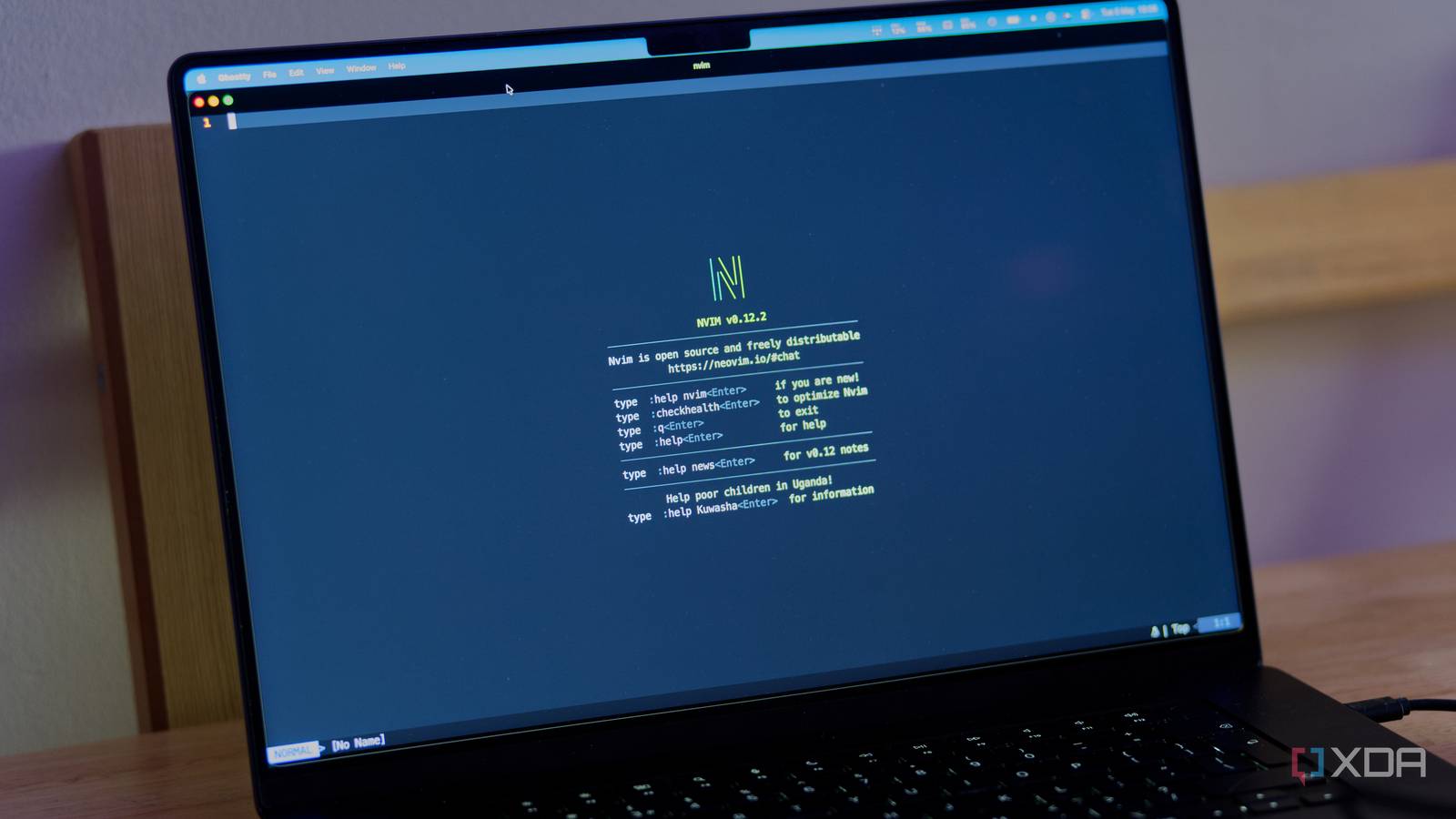
Neovim uses modes: Normal, Insert, Visual, and Command. Start Neovim with nvim. In Normal mode, use h, j, k, l to move cursor. Press i to enter Insert mode and start typing. Press Esc to return to Normal mode. To save, type :w in Normal mode. To quit, :q. Try nvim sample.txt and practice moving around. Master these basics before moving on.
Step 3: Create a Basic init.lua Configuration
Neovim reads its configuration from ~/.config/nvim/init.lua (or init.vim). Create the directory and file:
mkdir -p ~/.config/nvim
nvim ~/.config/nvim/init.lua
Add simple settings:
vim.opt.number = true  -- line numbers
vim.opt.relativenumber = true
vim.opt.expandtab = true
vim.opt.tabstop = 4
vim.opt.shiftwidth = 4
vim.opt.mouse = 'a'
Save with :w and reload with :source $MYVIMRC. This enables line numbers, proper indentation, and mouse support.
Step 4: Install a Plugin Manager
Plugins extend Neovim's functionality. Lazy.nvim is modern and fast. Add to your init.lua:
local lazypath = vim.fn.stdpath("data") .. "/lazy/lazy.nvim"
if not vim.loop.fs_stat(lazypath) then
  vim.fn.system({
    "git",
    "clone",
    "--filter=blob:none",
    "https://github.com/folke/lazy.nvim.git",
    "--branch=stable",
    lazypath,
  })
end
vim.opt.rtp:prepend(lazypath)

require("lazy").setup("plugins")
Create a plugins directory: mkdir ~/.config/nvim/lua/plugins. Each plugin gets its own file.
Step 5: Add Essential Plugins
Start with a file explorer (nvim-tree), LSP support (nvim-lspconfig), autocompletion (nvim-cmp), and a color scheme (tokyonight). Create ~/.config/nvim/lua/plugins/tree.lua:
return {
  {
    "nvim-tree/nvim-tree.lua",
    version = "*",
    dependencies = { "nvim-tree/nvim-web-devicons" },
    config = function()
      require("nvim-tree").setup({})
    end,
  },
}
Similarly, create files for other plugins. After saving, restart Neovim and run :Lazy sync to install. Refer to each plugin's documentation for detailed setup.
Step 6: Customize for Your Workflow
Map commonly used actions to leader keys. Set the leader key in init.lua:
vim.g.mapleader = " "
vim.keymap.set("n", "e", ":NvimTreeToggle")
Add snippets with LuaSnip, auto-pairs with windwp/nvim-autopairs, and Git integration with lewis6991/gitsigns.nvim. Test these by editing a file and exploring their features.
Tips for Success
- Start small: Master basic movement and editing before adding many plugins.
- Use the built-in help:
:helpand:help keybindingare your friends. - Practice daily: Even 10 minutes typing with Neovim will build muscle memory.
- Avoid copying entire configs: Understand each setting you add to avoid bloat.
- Keep a cheat sheet: Write down new keybindings until they stick.
Neovim's learning curve is steep, but once you set it up, you'll wonder why you didn't switch sooner—just like I did after years of nano.